This article was co-authored by Luigi Oppido. Luigi Oppido is the Owner and Operator of Pleasure Point Computers in Santa Cruz, California. Luigi has over 25 years of experience in general computer repair, data recovery, virus removal, and upgrades. He is also the host of the Computer Man Show! broadcasted on KSQD covering central California for over two years.
The wikiHow Tech Team also followed the article's instructions and verified that they work.
This article has been viewed 635,333 times.
This wikiHow teaches you how to change the settings in Google Chrome to allow pop-up ads to appear while you browse the internet, or if you only want to allow pop-up ads for a specific site, how to add a website to the "Allowed" list in the pop-up settings section of Google Chrome.
Steps
Method 1
Method 1 of 2:Allowing all Pop-ups
-
1Open Google Chrome.
-
2Click ⋮ in the upper-right corner of the window.[1]Advertisement
-
3Click Settings.[2]
-
4Scroll to the bottom of the page and click Advanced.
-
5Scroll down and click Content settings. It's near the bottom of the "Privacy and security" section.
-
6Scroll down and click Popups.
-
7Slide the Blocked slider to the "On" position . The Blocked label will change to Allowed. You will now see pop-up windows whenever you encounter them in Chrome.
- You can block pop-ups from individual sites by clicking Add under the "Blocked" section of the menu and entering the URL of the site from which you wish to block the content.
Advertisement


Method 2
Method 2 of 2:Allowing Pop-ups from a Specific Site
-
1Open Google Chrome.
-
2Click ⋮ in the upper-right corner of the window.
-
3Click Settings.
-
4Scroll to the bottom of the page and click Advanced.
-
5Scroll down and click Content settings. It's near the bottom of the "Privacy and security" section.
-
6Scroll down and click Popups.
-
7
-
8Click ADD to the right of "Allow."
-
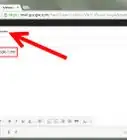
9Enter a URL. Type the address of the site from which you'd like to allow pop-ups.
-
10Click ADD. You will now see pop-up windows from this site when you encounter them in Chrome.Advertisement


Community Q&A
-
QuestionHave tried to allow popups on walmart.com according to your directions but still not allowing popups. What can I do?
 Community AnswerIf you look at the address bar, you should see an 'i' icon at the leftmost side. Click on it and it should open up a menu, look down and find "Popups" then select your preferred setting.
Warnings
- When you allow pop-ups on Google Chrome your computer may slow down or freeze (stop functioning). Some pop-ups can contain animation or videos that automatically start playing when the pop-up opens. This hogs your Internet speed and computer hardware causing slow web browsing or possible operating system crashes.Thanks!










References
About This Article

1. Open Google Chrome.
2. Click ⋮
3. Click Settings.
4. Click Advanced.
5. Click Content settings.
6. Click Popups.
7. Slide Blocked to "On."