X
wikiHow is a “wiki,” similar to Wikipedia, which means that many of our articles are co-written by multiple authors. To create this article, volunteer authors worked to edit and improve it over time.
This article has been viewed 47,056 times.
Learn more...
The master volume of the computer affects all sound devices currently running in the system. For Windows 7, adjusting the master volume or system volume is very simple.
Steps
Method 1
Method 1 of 2:Through the Control Panel
Method 1
-
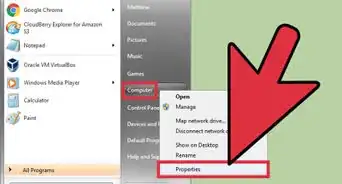
1Click the "Start" button or the circle button with the Microsoft logo on it. Usually found on the lower right of your screen.
-
2Click the "Control Panel" button in the selection on the right.
-
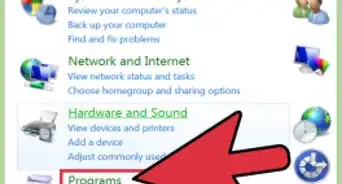
3Click "Hardware and Sound".
-
4From the list, click "Adjust system volume" under "Sound".
-
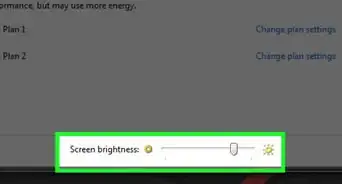
5Adjust the volume to desired level.


Method 2
Method 2 of 2:Through the Taskbar
Method 2


Community Q&A
-
QuestionThe speaker icon does not work in my computer's taskbar. What can I do?
 WFTop AnswererGo to Controll Panel > Notificaton Area Icons and change volume.
 -
QuestionMy audio output device is not installed, what should I do?
 ArroganceTop AnswererInstall the drivers for it. You can find these on the website of the manufacturer of your computer, motherboard, or sound card (if using HDMI).
Warning
- If you're using auxiliaries such as headphones and earphones, please adjust the audio accordingly to avoid any hearing damage.

-Step-55-Version-2.webp)





-Step-55-Version-2.webp)









































