X
This article was co-authored by wikiHow Staff. Our trained team of editors and researchers validate articles for accuracy and comprehensiveness. wikiHow's Content Management Team carefully monitors the work from our editorial staff to ensure that each article is backed by trusted research and meets our high quality standards.
This article has been viewed 2,469 times.
Learn more...
This wikiHow article teaches you how to address Alexa. Alexa is Amazon’s virtual assistant that comes with the Amazon Echo line of speakers. Talking to the virtual assistant is as simple as saying a name.
Steps
Method 1
Method 1 of 2:Waking Alexa Up
Method 1
-
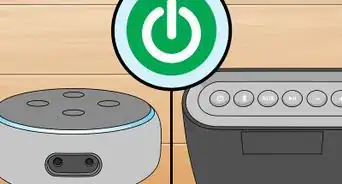
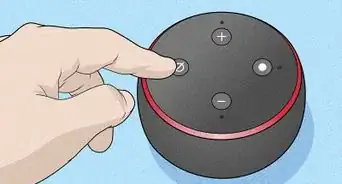
1Check to make sure your Echo device is turned on. If your Echo is plugged in and you previously set up the device, you should be good to go.
-
2Say Alexa loudly and clearly. To wake Alexa up, simply say “Alexa” and a blue ring of light will appear on your Echo. This is how you know the device is listening for you to ask a question or give a command.Advertisement
-
3Ask a question or give a command. While the blue ring is still lit up, ask Alexa to do something for you. Immediately after you finish speaking, the blue ring should flash as Alexa figures out how to handle your question or command.
- Not sure what to say? You can ask Alexa all sorts of questions or have her perform a wide array of functions. Try one of these: “Alexa, what’s the weather today?” or “Alexa, set a timer for 10 minutes.”
Advertisement


Method 2
Method 2 of 2:Changing the Name of Alexa
Method 2
-
1Open the Alexa app. The Alexa app is light-ish blue in color and has a white circle on it.
-
2Tap on the menu button in the top left corner of the app. From the app’s home screen, you should see a menu button in the top left of the app that looks like two full horizontal lines and a third half line.
-
3Select Settings. The menu has a bunch of options to choose from, but tap on “Settings” which should be all the way at the bottom.
-
4Tap on Device Settings. Next, you should select “Device Settings” which should be second from the top of the settings page.
-
5Choose the Echo device you want to rename. If you only have one Echo device, you can tap on it immediately. If you have multiple devices, look for the one you wish to edit and then tap on it.
-
6Tap on Wake Word. At the top of the page, you should see the name of the selected Echo device. Find the setting titled “Wake Word” and select it.
-
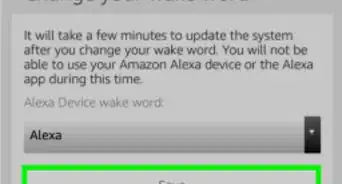
7Select a new Wake Word from the list. In addition to “Alexa,” you should see options to change the name to “Echo,” “Amazon,” or “Computer.” Pick the one you prefer.
-
8Try out the new name. Once you are done, try addressing your Echo by the newly selected name. It should work just as it did before, but the “wake word” is now different.Advertisement









About This Article

wikiHow Staff
wikiHow Staff Writer
This article was co-authored by wikiHow Staff. Our trained team of editors and researchers validate articles for accuracy and comprehensiveness. wikiHow's Content Management Team carefully monitors the work from our editorial staff to ensure that each article is backed by trusted research and meets our high quality standards. This article has been viewed 2,469 times.
How helpful is this?
Co-authors: 5
Updated: April 21, 2021
Views: 2,469
Categories: Amazon Alexa
Article SummaryX
1. Check to make sure your Echo device is turned on.
2. Say Alexa loudly and clearly.
3. Ask a question or give a command.
Did this summary help you?
Advertisement