X
This article was written by Darlene Antonelli, MA. Darlene Antonelli is a Technology Writer and Editor for wikiHow. Darlene has experience teaching college courses, writing technology-related articles, and working hands-on in the technology field. She earned an MA in Writing from Rowan University in 2012 and wrote her thesis on online communities and the personalities curated in such communities.
Do you have a table in Excel that could benefit from a row of totals? This wikiHow will teach you how to add a total row in Excel.
Steps
-
1Open your project in Excel. Double-click your .xls worksheet file in File Explorer (for Windows) or Finder (for Mac). Alternatively, right-click the file and select Open with > Excel.
- If you already have Excel open, go to File > Open and open your project.
-
2Click anywhere in the table. Once you click the table, you'll see the "Design" tab in the editing ribbon.Advertisement
-
3Click Design. Once you click this tab, you'll see more options for editing your table appear.
-
4Click the box to select Total Row. It's in the "Table Style Options" grouping to the right of the menu.
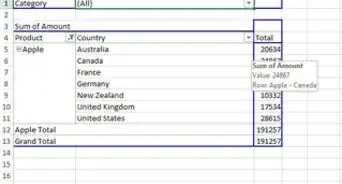
- You'll see a row added to the bottom of your table that will list totals.
- From the drop-down menu, you can select a function, like Average, Count, Count Numbers, Max, Min, Sum, StdDev, and Var.[1]
Advertisement












References
About This Article

Darlene Antonelli, MA
Tech Specialist
This article was written by Darlene Antonelli, MA. Darlene Antonelli is a Technology Writer and Editor for wikiHow. Darlene has experience teaching college courses, writing technology-related articles, and working hands-on in the technology field. She earned an MA in Writing from Rowan University in 2012 and wrote her thesis on online communities and the personalities curated in such communities.
How helpful is this?
Co-authors: 3
Updated: September 21, 2021
Views: 404
Categories: Spreadsheets
Article SummaryX
1. Open your project in Excel.
2. Click anywhere in the table.
3. Click Design.
4. Click the box to select Total Row.
Did this summary help you?
Advertisement