wikiHow is a “wiki,” similar to Wikipedia, which means that many of our articles are co-written by multiple authors. To create this article, 10 people, some anonymous, worked to edit and improve it over time.
This article has been viewed 20,679 times.
Learn more...
If you want to add a table into your website, you might consider using HTML to do it. Table is a fundamental part of web page layout and it helps to present information clearly and improve your website design. The process is not very different from creating a HTML file (your web page) so if you are already familiar with that, the steps will be very easy to follow. It will show the whole process starting from a very basic table to table with borders, title and headings.
Steps
Method 1
Method 1 of 2:Basic table layout with no borders


Method 2
Method 2 of 2:Table with border
-
1Add the border to your table – it simply involves adding the border attribute to the opening tag
-
2Add the border attribute to the code you used earlier a basic table as follows:
- The '3' represents the thickness of the border, so you can change it.
-
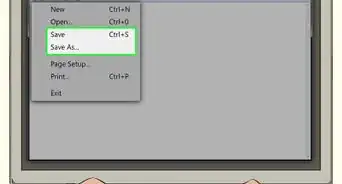
3Save the file as Table 2 with. html extension:
-
4Open Table2 in your browser. Your basic table will be displayed with the border now.Advertisement
-
Add the code elements that insert the Table Title like shown below:
- 'th' tags define headings, they centre the headings and display it in bold by default;
- 'COLSPAN=n' – is used to span the title across the columns, “n” – describes the number of columns. Since we have 3 columns in our table, 'colspan=3' in this example;
- If you want to enlarge the Table Title and insert an extra line above it, write the following code:
- 'h3' will tell the browser to display the Title in a larger font;
- 'br' - is used in order to create a space above the Table Title.
- Add individual column headings - Column 1, Column 2, Column 3. Write the following code elements into your HTML file.
- As you can see in the example above,an extra row ('tr') was included in order to create Columns 1,2 and 3. The individual columns are defined by 'th' tags.
- Since these codes, by default, centre the headings and set them in bold, no other attributes were included in the headings;
- Save the file as Table 3 with .html extension:
- Open your Table 3 file in your browser, your table will be displayed in the following form:


5
Table with border, Table Title and Headings







- Preserve Formatting When Using Copy and Paste
- Insert Images with HTML
- Create a Simple Web Page with HTML
Community Q&A
-
QuestionHow exactly do I create a table using HTML?
 Community Answertable, th, td { border: 1px solid black; border-collapse: collapse; } . (If you want the borders to collapse into one border, use the CSS border-collapse property.)