X
wikiHow is a “wiki,” similar to Wikipedia, which means that many of our articles are co-written by multiple authors. To create this article, volunteer authors worked to edit and improve it over time.
This article has been viewed 51,961 times.
Learn more...
Adding a book to your iTunes library allows you to either listen to audio books or read digital books directly from your iPhone, iPod, iPad or other iTunes compatible device. In order to add a book to your iTunes library, you will need the Apple ID and Password you used to set up iTunes in order to purchase the book you would like to add to your digital library.
Steps
-
1Open your iTunes program on your PC or Mac.
-
2Go to the iTunes store by selecting the "iTunes Store" under the Stores heading in the column on the left hand side; the "iTunes Store" section has a shopping bag icon next to it. This step will take a minute while your computer connects to the iTunes store. The display box in the top middle of the iTunes program will show that iTunes store is loading. The iTunes store will display in the main window of your iTunes program once it has loaded.
-
3Locate the "Books" section from the list running along the top of the iTunes Store window showing in the main iTunes window. It is in the middle top of the iTunes Store page.
-
4Access the "Books" section of the iTunes store options list. To do so, either click directly on the "Books" title of the iTunes store options list, or click and hold the "Books" section of the iTunes store main window to activate the drop down menu of options for you to search for the specific book you want to add to your iTunes library. The search options allow search options include prices of the book, forms of the book (i.e. audio books), and subject matter of the books.
-
5Search for or click on a thumbnail or title of the book you would like to purchase to add to your iTunes library. This will revert you to a display of all the book's information. If this is the book you would like to purchase, proceed to the next step.
-
6Click on the "Buy Book" button in for the book you have chosen to purchase the selected book.
-
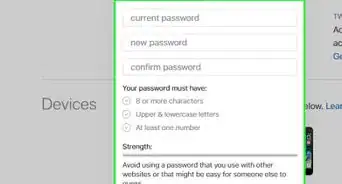
7Type in your "Apple ID" and "Password" into the designated fields to verify your purchase of the book and begin its download. iTunes will then download the book directly into your iTunes library.
-
8Find the book in your iTunes library after its download by clicking on the "Books" section on the left hand column of the iTunes window. This will then pull up a list or pictures of all of your purchased books within iTunes.