X
This article was co-authored by wikiHow Staff. Our trained team of editors and researchers validate articles for accuracy and comprehensiveness. wikiHow's Content Management Team carefully monitors the work from our editorial staff to ensure that each article is backed by trusted research and meets our high quality standards.
This article has been viewed 20,410 times.
Learn more...
This wikiHow teaches you how to send emoji-like pictures called Stickers to someone in a chat conversation on Snapchat.
Steps
-
1Open Snapchat. The Snapchat icon looks like a yellow box with a white ghost in it.
-
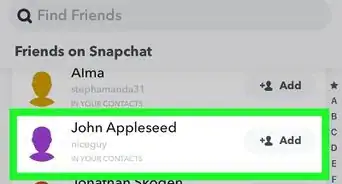
2Swipe right. Snapchat will open up to the camera screen, and swiping right will take you to your Chat page.
-
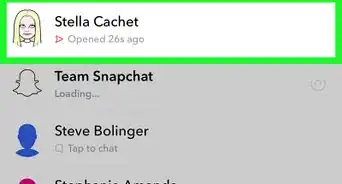
3Swipe right on a chat. This will open your chat conversation with your contact.
- If you've previously saved any chats with this contact, they will appear here. Otherwise, the chat will be empty.
-
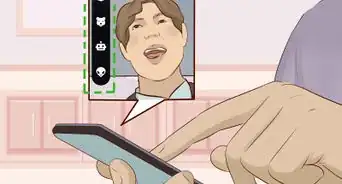
4Tap on the Stickers button. This button looks like a smiley emoji with the tongue sticking out. It will be located in the right-hand side of the toolbar above your keyboard.
-
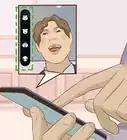
5Tap on a sticker category. You will see a bar with sticker categories at the bottom of your screen. Tapping on a category will show you the available stickers.
- The clock icon in the lower-left corner of your screen will show your recent stickers. These are all the stickers that you have recently used in a chat conversation.
- The human face icon next to the clock is your Bitmoji. This will show you a list of Bitmojis that you can send as a sticker. These will include stickers with both of your and your contact's Bitmojis, as well as stickers with only your own Bitmoji.
- The tiny bear icon to the right of the Bitmoji button will bring up a list of original stickers that you can send.
- The smiley emoji icon next to the tiny bear will bring up a list of all standard emojis. This category will send standard emojis as stickers.
-
6Tap on the sticker you want to send. Tapping on a sticker will send it in the chat.







About This Article

wikiHow Staff
wikiHow Staff Writer
This article was co-authored by wikiHow Staff. Our trained team of editors and researchers validate articles for accuracy and comprehensiveness. wikiHow's Content Management Team carefully monitors the work from our editorial staff to ensure that each article is backed by trusted research and meets our high quality standards. This article has been viewed 20,410 times.
How helpful is this?
Co-authors: 3
Updated: September 18, 2019
Views: 20,410
Categories: Snapchat
Article SummaryX
1. Open Snapchat.
2. Swipe right.
3. Swipe right on a chat.
4. Tap on the smiley emoji icon.
5. Select a sticker category.
6. Tap on a sticker to send.
Did this summary help you?