X
wikiHow is a “wiki,” similar to Wikipedia, which means that many of our articles are co-written by multiple authors. To create this article, volunteer authors worked to edit and improve it over time.
This article has been viewed 76,364 times.
Learn more...
This tutorial shows you how to add pages to a document using Adobe Illustrator. Get started at step number one below.
Steps
-
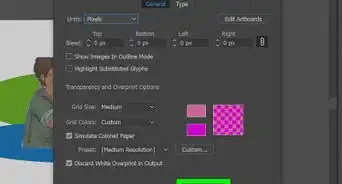
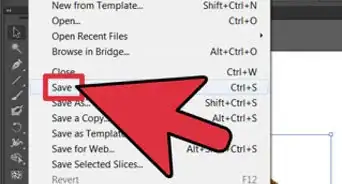
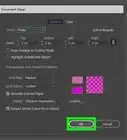
1Add more pages to a preexisting document. For example, if you have one A4 cover page but you want to add more pages to the document. Go to File > New Documents. Select add and make the width of your document in multiples. If you need two pages, choose A3 size > OK.
-
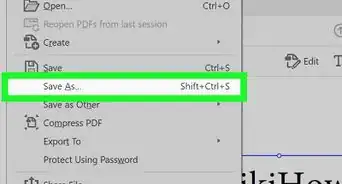
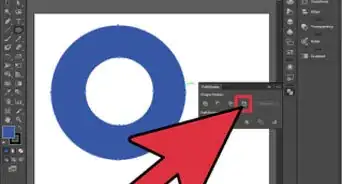
2Go to File > Print > Set up > Tiling > Tiling Full Pages > Done.
-
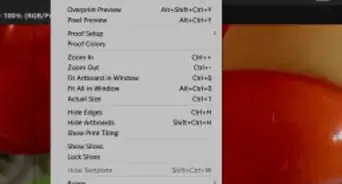
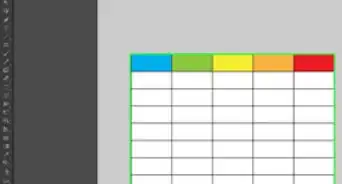
3Add your second page, go to View > Show Page Tiling.
-
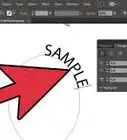
4If you need to add more pages, you can change the width or the height of your document multiples
-
5To account for added pages, you should add 210mm to the width of document. And for the right one, add 297mm to compensate for the height of document.