X
wikiHow is a “wiki,” similar to Wikipedia, which means that many of our articles are co-written by multiple authors. To create this article, 13 people, some anonymous, worked to edit and improve it over time.
This article has been viewed 311,980 times.
Learn more...
Gmail is loaded with helpful features to help you be as efficient as possible and Gmail notes is one of its most used features. Gmail notes help you stay organized by letting you create a note for every conversation in your inbox, and is as easy as adding a label or filter to a message. This article show you the steps required to add notes in Gmail.
Steps
-
1Log into your Gmail email account using your email address and password.
-
2Navigate to “Settings” in the upper right corner of the screen, click the “Label” tab, then click “Create New Label.”
-
3Name your new label something that’s easy to remember, for example “Notes.”
-
4Click on the “Filter” tab and select “Create New Filter.”
-
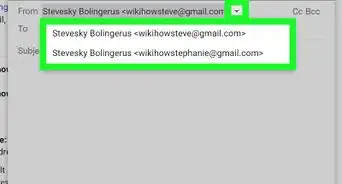
5In the “To:” section of the new filter, insert your Gmail name (of your Gmail address) followed by +Notes@gmail.com.(for example, Jane+Notes@gmail.com.), then click “Create filter with this search.”
-
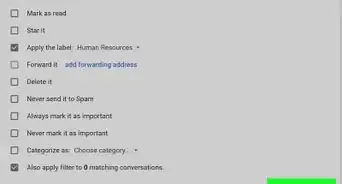
6Checkmark the box “Apply the label” and then select the new label, “Notes.”
-
7Test your “Note” feature to ensure you’ve set it up correctly by sending an email to the new email address you just created. You will know it was been sent correctly if the note arrives in your inbox.


Community Q&A
-
QuestionHow can I respond to questions in an email?
 Community AnswerCopy and paste the original questions and then type your answers below each one.
Warnings
- Do not try to modify or edit your notes.Thanks!