wikiHow is a “wiki,” similar to Wikipedia, which means that many of our articles are co-written by multiple authors. To create this article, 11 people, some anonymous, worked to edit and improve it over time.
This article has been viewed 240,720 times.
Learn more...
The PlayStation Network, also known as the PSN, is a gaming and shopping service created by Sony Computer Entertainment. It is used for the PlayStation 3, PlayStation Portable and PlayStation Vita video game consoles. The money in your PSN account is called your "wallet." It is not necessary to add funds to your wallet in order to use your PlayStation Network account; however, the wallet is used to purchase games and movies in the PlayStation Store, which is accessible through the console. You will add money to your PSN account through the PlayStation console menu. This article will tell you how to add money to your PSN account.
Steps
-
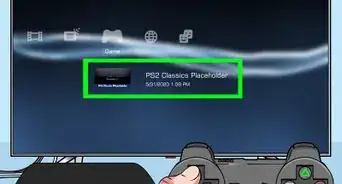
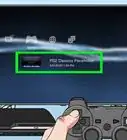
1Turn on your PlayStation. Allow it to load the Cross Media Bar (XMB) before you click on anything. The XMB is a menu with icons that give you options, such as "Games," "Video" and "PlayStation Network."
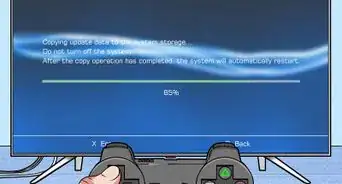
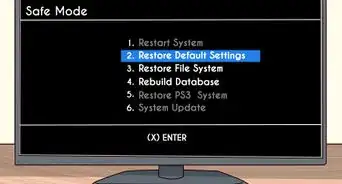
- Your PlayStation system will need to be updated with current software in order to add funds to your account. Scroll left through the XMB until you find the Settings menu icon, which looks like a suitcase. Scroll down vertically until you find the "System Update" icon. Press the icon to update your system.
-
2Scroll horizontally to the PlayStation Network icon. This icon is a blue ball that features the 4 PlayStation controller symbols: a square, a triangle, a cross and a circle. Click on that icon.
-
3Scroll vertically until you reach the "Account Management" icon. It is a smiley face with a pencil next to it. Click on this icon.
-
4Scroll down through the options until you reach the "Transaction Management." This icon is a graphic of 3 stacked coins. Click on the icon.
- If you want to add money with a promotion code, click the "Redeem Codes" option, rather than "Transaction Management." This may include email promotion codes or gift cards.
-
5Choose the first icon in the vertical list, labeled "Add Funds." In this menu, you can also choose to "Require Password at Checkout," "Automatic Funding," "Transaction History," "Download List" and "Services List."
-
6Enter your password in the box that pops up. First click on the box, and then use the controller to type in the password 1 character at a time. Press the "OK" button when you are done.
-
7Select the option to fund your wallet with a credit card or a PlayStation Network Card. PlayStation Network Cards are available at authorized PlayStation stores. Click on the option you prefer.
-
8Add the amount of money you want to add to your PSN Network wallet. In North America, your options are $5, $10, $25, $50 and $150. At any time, your wallet cannot exceed $150.
-
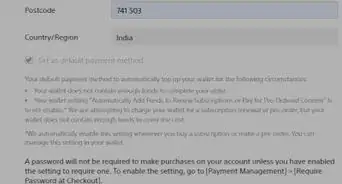
9Enter your credit card details or PlayStation Network Card codes. If you are using a credit card, you will need to enter the number, expiry date and other personal information. You can choose to save the card on your wallet, so that the details do not have to be entered for future purchases.
- If your PlayStation Network Card does not work, it is likely that it was not activated when you purchased it. Return the card to the store with your receipt and ask them to activate it.
-
10Agree to the terms of service. Any money added to your PSN wallet is non-refundable. After the screen pops up to confirm the amount added to your wallet, you can use your funds to purchase content from the PlayStation store.


Community Q&A
-
QuestionWill I get an email if I add funds to my wallet?
 Community AnswerYes. You will get an email from Sony about the confirmation of the transaction.
 -
QuestionWill these tips work for someone living in the UK?
 Community AnswerThough the type of money and amounts may be different, these tips should pretty much point you in the right direction in the UK.
 -
QuestionAm I able to pay with a Visa gift card?Community AnswerYes, as long as there's sufficient credit on it.
-
QuestionWhat should I do if I have a credit card in a currency that's different from what's shown on PSN?Community AnswerCheck your residence settings. PSN supports a ton of different currencies, so yours should be there.
Things You'll Need
- PlayStation console
- PlayStation controller or remote
- Credit card or Debit card
- PlayStation Network Card (optional)