X
This article was co-authored by wikiHow Staff. Our trained team of editors and researchers validate articles for accuracy and comprehensiveness. wikiHow's Content Management Team carefully monitors the work from our editorial staff to ensure that each article is backed by trusted research and meets our high quality standards.
The wikiHow Tech Team also followed the article's instructions and verified that they work.
This article has been viewed 11,312 times.
Learn more...
This wikiHow teaches you how to add everyone from your email address book right to your iPhone contact list.
Steps
-
1Open your iPhone’s Settings. It's an app showing gray cogs that can be found on one of your home screens. If you don’t see it on your home screen, check in a folder called "Utilities."
-
2Scroll down and tap Mail. You can find it in the fifth section of items.Advertisement
-
3Tap Accounts. This will show you all of the email addresses on your device.
-
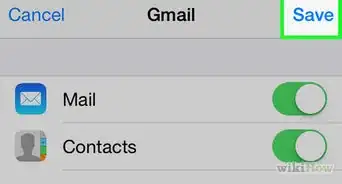
4Tap the account type you want to sync. Some common account types include Cloud, Gmail, Outlook, etc. After selecting one of the options, a new page will open with several on/off choices.
-
5Slide the Contacts button to the “on” position. It’ll slide to the right and turn green. Now, anyone you have saved to this email address book will also appear in your iPhone contacts list.Advertisement














About This Article

wikiHow Staff
wikiHow Staff Writer
This article was co-authored by wikiHow Staff. Our trained team of editors and researchers validate articles for accuracy and comprehensiveness. wikiHow's Content Management Team carefully monitors the work from our editorial staff to ensure that each article is backed by trusted research and meets our high quality standards. This article has been viewed 11,312 times.
How helpful is this?
Co-authors: 2
Updated: May 15, 2018
Views: 11,312
Categories: IPhone
Article SummaryX
1. Open Settings.
2. Tap Mail.
3. Tap Accounts.
4. Select your email account.
5. Enable the Contacts button.
Did this summary help you?
Advertisement