This article was written by Travis Boylls. Travis Boylls is a Technology Writer and Editor for wikiHow. Travis has experience writing technology-related articles, providing software customer service, and in graphic design. He specializes in Windows, macOS, Android, iOS, and Linux platforms. He studied graphic design at Pikes Peak Community College.
This article has been viewed 15,648 times.
This wikiHow teaches you how to activate Twitch on XBox One. To activate Twitch, first you will need to create an account on your PC or mobile device. The first time you log in to the Twitch app on your XBox One, it displays a six-digit activation code. This code is used to activate the XBox One Twitch app from the Twitch website on your PC or mobile device.
Steps
-
1Create a Twitch account. Before you can activate Twitch on your XBox One, you need to create a Twitch account on your PC or mobile device. If you haven't created an account yet, you can read "How to Create an Account on Twitch" to learn how to create a Twitch account.
-
2Select Store from the XBox One dashboard. The dashboard is the main home screen on XBox One. The Store is located at the top-right of the XBox One dashboard. Use the directional buttons, or the left analogue stick to navigate to the Store tab at the top of the screen. Press the "A" button on the controller to select an item on the XBox One.Advertisement
-
3Select Apps. The "Apps" tab is at the top of the screen in the XBox One Store. This displays apps you can download and purchase for XBox One.
-
4Find and select Twitch. The Twitch app has a purple icon with a square-shaped speech box with a semi-colon in the center. Select the Twitch icon to display the Twitch information screen in the Store.
- If you can't find Twitch, select the magnifying glass icon in the upper-right corner and then use the on-screen keyboard to search for Twitch by name.[1]
-
5Select Get for free. This button is to the right of the Twitch title and icon in the Twitch information page. Select this button to download the Twitch app to your XBox One.[2]
-
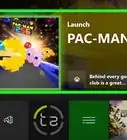
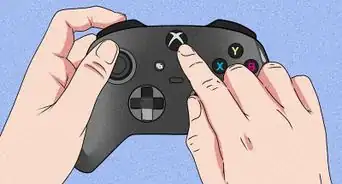
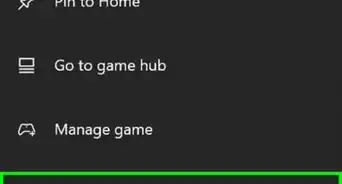
6Select My games & apps from the XBox One home screen. To return to the XBox One home screen, press the XBox button in the center of the controller. Then select the My games & apps icon. It's the icon that has a large square with two smaller squares to the right. This is where you browse all the games and apps installed on your XBox One.[3]
-
7Select the Twitch app. The Twitch app has a purple icon with a square-shaped speech box with a semi-colon in the middle. This opens the Twitch app.
-
8Select Log In. It's the last option in the sidebar to the left in the Twitch app. This displays a screen with a six-digit activation code on the right side of the screen. Write this code down or keep it on the screen. You will need it to activate the Twitch app.
-
9Go to http://twitch.tv/activate in a web browser. You can use any web browser on your PC, Mac, or mobile device.
-
10Log in to Twitch on your PC or mobile device. Use the username or email and password associated with you Twitch account to log in to Twitch on your PC or mobile device to view the activation screen.
-
11Type the six-digit activation code and click Done. The Twitch activation page has a small box in the center where you can enter the six-digit code displayed by the app on the Twitch app on your XBox one and tap Done. Allow a few minutes for the activation to process. Once the activation code has been accepted, the screen with the activation code on your XBox One will change to the home page of the Twitch app. Twitch has now been activated on your XBox One.[4]Advertisement


References
About This Article

1. Download and open Twitch app from the XBox Store.
2. select Log In from within Twitch app.
3. Go to http://twitch.tv/activate in a web browser on your PC or mobile device.
4. Log in to your Twitch account on your PC or Mobile device.
5. Enter the six-digit activation code displayed in the XBox One Twitch app.