This article was written by Nicole Levine, MFA. Nicole Levine is a Technology Writer and Editor for wikiHow. She has more than 20 years of experience creating technical documentation and leading support teams at major web hosting and software companies. Nicole also holds an MFA in Creative Writing from Portland State University and teaches composition, fiction-writing, and zine-making at various institutions.
The wikiHow Tech Team also followed the article's instructions and verified that they work.
This article has been viewed 35,724 times.
This wikiHow teaches you how to see what’s on your Audible wishlist when you’re using an iPhone or iPad. Though there’s no way to pull up your wishlist in the Audible app, you can access it at Audible.com in a web browser.
Steps
-
1Open a web browser on your iPhone or iPad. You can use Safari (the compass icon typically found on the home screen) or any browser you prefer.
-
2Navigate to https://www.audible.com. To do this, type www.audible.com into the address bar at the top of the browser, then tap the Go key on the keyboard.
-
3Tap ≡ Menu. It’s at the top-left corner of the page.
-
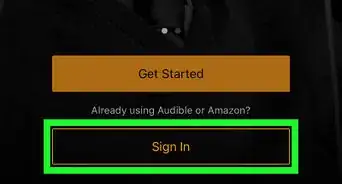
4Tap Sign In. It’s the yellow button at the top of the menu.
-
5Enter your login details and tap Sign In. Use the same login and password you use to sign in to Amazon.com and the Audible app. This signs you into Audible.
-
6Tap ≡ Menu again. It’s at the top-left corner of the page.[1]
-
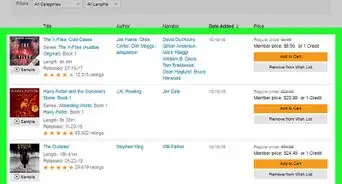
7Tap Wish List. It’s toward the top of the menu. This displays the list of audiobooks you’ve added to your Audible wishlist.
- To purchase a book from your wishlist, tap its title or cover image, then select a payment option.
- To remove a book from the list, tap the ⁝ menu next to the book’s title, then tap Remove.












References
About This Article

1. Go to Audible.com in a web browser.
2. Sign in.
3. Tap ≡ Menu.
4. Tap Wish List.