X
This article was written by Nicole Levine, MFA. Nicole Levine is a Technology Writer and Editor for wikiHow. She has more than 20 years of experience creating technical documentation and leading support teams at major web hosting and software companies. Nicole also holds an MFA in Creative Writing from Portland State University and teaches composition, fiction-writing, and zine-making at various institutions.
The wikiHow Tech Team also followed the article's instructions and verified that they work.
This article has been viewed 10,355 times.
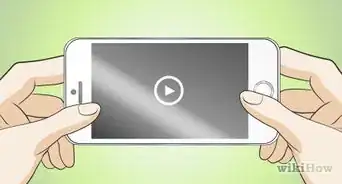
This wikiHow teaches you how to open the Camera app on your Android phone or tablet.
Steps
Method 1
Method 1 of 2:From the App Drawer
Method 1
-
1Unlock your Android’s screen. The steps to do this will vary, but you’ll often have to press the Power or Volume button, swipe the screen, and then enter a PIN or pattern.
-
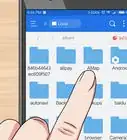
2Tap the app drawer icon. It’s the icon made of 6 to 9 small dots or squares at the bottom of the home screen. This opens the list of apps on your Android.
- If you see the Camera app on the home screen, you don’t have to open the app drawer. Just tap Camera or the icon that looks like a camera.
Advertisement -
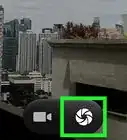
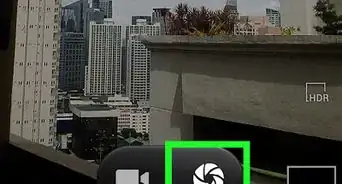
3Tap Camera. Your Camera app is now open and ready to use.Advertisement


Method 2
Method 2 of 2:From the Lock Screen
Method 2
-
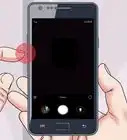
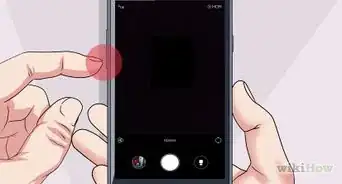
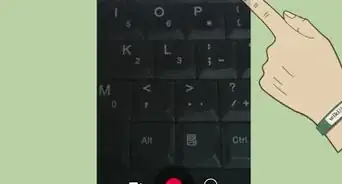
1Press the power button once to illuminate the lock screen. This usually displays the current time and date.
- This method may not be available on some Android phones and tablets.
-
2Swipe the camera icon upward. This should launch the Camera app if it’s available through the lock screen.Advertisement


Community Q&A
-
QuestionWhat if camera doesn't appear?
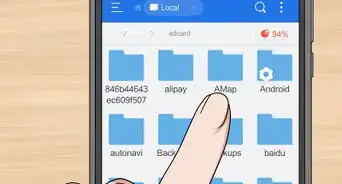
 Community AnswerYou should go onto your apps screen on your android device, where it will display all apps that have been downloaded onto your phone. Also, the camera app comes built into the device, so that means it cannot be accidentally deleted or uninstalled. The camera app will likely be on your apps screen.





About This Article

Nicole Levine, MFA
Tech Specialist
This article was written by Nicole Levine, MFA. Nicole Levine is a Technology Writer and Editor for wikiHow. She has more than 20 years of experience creating technical documentation and leading support teams at major web hosting and software companies. Nicole also holds an MFA in Creative Writing from Portland State University and teaches composition, fiction-writing, and zine-making at various institutions. This article has been viewed 10,355 times.
How helpful is this?
Co-authors: 2
Updated: June 3, 2021
Views: 10,355
Categories: Android Applications
Advertisement