This article was written by Jack Lloyd. Jack Lloyd is a Technology Writer and Editor for wikiHow. He has over two years of experience writing and editing technology-related articles. He is technology enthusiast and an English teacher.
The wikiHow Tech Team also followed the article's instructions and verified that they work.
This article has been viewed 195,769 times.
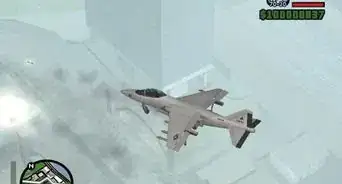
This wikiHow teaches you how to install Grand Theft Auto: San Andreas on your computer or console. While the original version of GTA: San Andreas was only available for Windows computers and the PlayStation 2 console, you can download a remastered version of GTA: San Andreas onto your computer, Xbox One or PlayStation 4. If you're willing to play around with your computer's compatibility settings, you can also install the original version of GTA: SA on a Windows computer.
Steps
Method 1
Method 1 of 4:Using Steam on Desktop
-
1Open Steam. Click or double-click the Steam app icon, which resembles the Steam logo. Doing so will open your Steam home page if you're logged into your Steam account.
- If you aren't signed into Steam, enter your email address (or username) and password before proceeding.
-
2Click the STORE tab. It's in the upper-left side of the Steam window. This will bring up the in-Steam web browser.Advertisement
-
3Click the search box. This option is in the upper-right side of the window.
-
4Search for Grand Theft Auto. Type in grand theft auto to prompt a list of matching games to appear.
-
5Click Grand Theft Auto San Andreas. It's in the drop-down list of matching games.
-
6Enter your date of birth. Click the "Day" text field and select a day, then repeat for the "Month" and "Year" text fields.
- If the Grand Theft Auto page opens automatically, skip this step and the next one.
-
7Click View Page. This is below the date of birth section. Doing so will open the Grand Theft Auto: San Andreas page.
-
8Scroll down and click Add to Cart. It's to the right of the "Buy Grand Theft Auto: San Andreas" heading.
-
9Click Purchase for myself. This green button is in the middle of the page.
-
10Enter your payment information if necessary. If asked to enter your card's number, name, and other information, do so before proceeding.
- If Steam remembers your payment information, skip this step.
-
11Click Continue. It's at the bottom of the page.
- You may have to scroll down to see this option.
-
12Check the "I agree" box. You'll find it near the bottom of the page.
-
13Click Purchase. It's at the bottom of the page. Doing so will buy Grand Theft Auto: San Andreas and proceed to download it.
- The amount of time GTA: SA takes to download will vary depending on your Internet speed.
-
14Play GTA San Andreas. Once GTA: San Andreas finishes downloading onto your Windows or Mac computer, you can play it by double-clicking its app icon, or via Steam by doing the following:
- Select the LIBRARY tab.
- Click Games in the drop-down menu.
- Click Grand Theft Auto: San Andreas in the left-hand column.
- Click PLAY in the main Library window.
Advertisement


Method 2
Method 2 of 4:Using the Classic GTA San Andreas CD on Desktop
-
1Make sure you're on a Windows computer. While the remastered version of Grand Theft Auto: San Andreas is available for both Windows and Mac computers, you cannot play the original version of GTA: San Andreas on a Mac.
- Your computer must also have a CD drive.
-
2Insert the San Andreas CD into your computer. The CD should go label side up in your computer's CD tray.
-
3
-
4Right-click the GTA CD's name. It's in the "Devices and drives" section of the This PC window. Doing so prompts a drop-down menu
-
5Click Open. This is in the drop-down menu. The CD's folder will open.
-
6Click once the setup file. The setup file has an ".exe" (EXE) extension on it, and will likely be named something like "setup". Clicking it once selects it.
-
7Right-click the setup file. Doing so prompts a drop-down menu for the file.
- Doing this without first clicking once the file will result in a different drop-down menu.
-
8Click Properties. It's in the drop-down menu. Doing so opens the Properties window.
-
9Click the Compatibility tab. This is at the top of the Properties window.
-
10Check the "Run this program in compatibility mode for" box. It's in the middle of the window.
-
11Click the drop-down box. This is below the box you just checked. Clicking it prompts a drop-down menu.
-
12Click Windows XP (Service Pack 3). It's in the drop-down menu. Enabling this option will ensure that Grand Theft Auto: San Andreas installs using settings for Windows XP (the original operating system on which GTA: SA was installed) rather than attempting to use your Windows 7, 8, or 10 settings.
-
13Click OK. It's at the bottom of the window. This will save your settings and close the Properties window.
-
14Double-click the setup file. Doing so launches the setup window.
-
15Follow the on-screen installation prompts. These prompts may differ or appear in a different order, but in most cases you'll do the following:
- Agree to the terms of installation.
- Click Next.
- Enter the activation code found on the CD case.
- Click Next.
- Check the "Complete" box.
- Click Next.
- Click Install.
-
16Play GTA San Andreas. Once GTA: San Andreas finishes installing, you'll eject the current disc and insert the disc labeled "Play" into your computer. GTA: San Andreas should then begin running.
- You may have to run the "Play" disc's EXE file in compatibility mode for this to work. You can do so by editing the Compatibility tab the same way you did for the first disc.
- Whenever the San Andreas "Play" disc is in your computer, double-clicking the GTA: San Andreas desktop shortcut will prompt it to begin running.
Advertisement


Method 3
Method 3 of 4:On Xbox One
-
1Open the Xbox One Store tab. On the Xbox One's home screen, press the RB button four times to select the Store tab.
-
2Select Search. Scroll down to highlight this option, then press A. Doing so opens the Store's search bar.
-
3Search for Grand Theft Auto San Andreas. Type in grand theft auto san andreas. This should cause only the San Andreas game to display.
-
4Select GTA San Andreas. It's the Xbox 360-styled game icon at the top of the screen. Selecting it causes its page to open.
-
5Select See Price. This option is on the far-right side of the screen.
-
6Select Continue. It's at the bottom of the price window.
- Under normal circumstances, Grand Theft Auto: San Andreas goes for $14.99. This price may differ depending on your location and any ongoing promotions.
-
7Select Confirm when prompted. Doing so will purchase GTA: San Andreas using your Xbox One's primary payment method and cause the game to begin downloading.
- If asked, enter your payment details before this step.
-
8Play GTA San Andreas. Once San Andreas finishes downloading onto your Xbox One, you can play it by doing the following:
- Select My games & apps.
- Select the Games tab.
- Select Grand Theft Auto: San Andreas.
Advertisement
Method 4
Method 4 of 4:On PlayStation 4
-
1Open the PlayStation Store. On the PlayStation 4 home screen, scroll left to select the PlayStation Store tile and press X.
- If prompted to update, select Update Now, select Next, select Update, and wait for the system update to finish installing.
-
2Select Search. It's at the top of the screen.
-
3Search for Grand Theft Auto. Type in grand theft auto and wait for related games to appear on the right side of the screen.
-
4Select Grand Theft Auto San Andreas. It's on the right side of the screen. This will open the Grand Theft Auto: San Andreas page.
-
5Select Add to Cart. This option is in the upper-left side of the screen.
-
6Select Proceed to Checkout. It's below the "Grand Theft Auto: San Andreas" heading.
-
7Select Proceed to Checkout. This is at the bottom of the screen.
-
8Select a payment method. In the list of payment methods at the top of the screen, highlight the one you want to use and press X.
- If you don't have a payment method set up, you'll need to add one before proceeding.
-
9Select Confirm Purchase. It's on the right side of the screen. This will confirm your purchase and begin downloading Grand Theft Auto: San Andreas.
- Once GTA: SA finishes downloading, you can select it from your PlayStation 4's home page to play it.
Advertisement
Community Q&A
-
QuestionHow can I download GTA San Andreas?
 Community AnswerYou can download it from many different web sources or through your game console. It's up to you.
 -
QuestionWhat do you do if the files are in an OBB format?
 Community AnswerUse any file manager app to copy the folder with the obb file (usualy weird named like "com.rockstargames...."), navigate to Android/obb and paste the folder in there. If no obb subfolder exists in folder Android then you have to manually create it.
 -
QuestionHow can I stop my game from going to the home screen when I'm playing?
 Community AnswerPress alt F4, then the login page opens. Now click start task manager and then click end task.
 -
QuestionWhere do I find out where to download GTA:SA?Community AnswerJust search for "GTA:SA free download - Norton Secured," or see Croat Torrent's video. Remember, if your antivirus detects a virus in the downloaded file, delete the file and do not overrule the antivirus. If this does not work, just buy the game. It is about $15 and if you buy the game legally, you will have access to Rockstar support if you encounter a problem in the game.
-
QuestionWhat sites on a PC are safe to download the GTA?Community AnswerOcean of Games is not only the safest, but the best and fastest. There are no scams, no stories, and no surveys.
-
QuestionHow do I install San Andreas on PC if the extract process stops and says that there is an error in the extract process?Community AnswerGet a file from another website, but the easiest way is to download from a CD. It's also safer but costs a little bit much.
-
QuestionWhen I download it, it has two files. Why is this happening?
 Community AnswerThis is because a virus has infected your system. Rectify the problem ASAP. Download Antiviruses on a trial basis.
 -
QuestionHow do I download GTA:SA on my Android device?Community AnswerYou can download GTA San Andreas on Android by simply going to appmirror.net or oceanofapk.com and you then search Gta San Andreas in the search bar. Then, you will see "download gta v2.00 original apk" and v2.00 obb on appmirror.net. The .apk file will take about 15 MB and the .obb file will take about 3 GB. Then you would see the same thing on oceanofapk.com just that in oceanofapk.com, the .apk file takes about 15 MB as well and the .obb file takes about 1 GB that is why I prefer using oceanofapk.com. When the two files have been downloaded you would need to go to zarchiever and go to the file/folder that you downloaded the files. Then you extract the .obb file to Android/obb.
-
QuestionMy GTA San Andreas on Windows 10 is running really slow. How can I make the gameplay faster?
 Ryan FebrianCommunity AnswerTurn off Frame Limiter, it is limiting the game FPS up to 30 fps. You can find it in Options -> Display Setup -> Advanced -> Set Frame Limiter to "Off". Be aware if it can causing high FPS bug, such as police siren is very hard to turned off, slow zoom in and out on map in pause menu, etc. If still lagging, then set Visual FX Quality to Low, or, decrease the game resolution.
Warnings
- In most cases, you won't be able to run the original version of GTA: San Andreas on a computer without making some modifications to the compatibility settings.Thanks!
- Downloading and playing GTA: San Andreas (or any paid game) without paying for it is illegal.Thanks!
About This Article
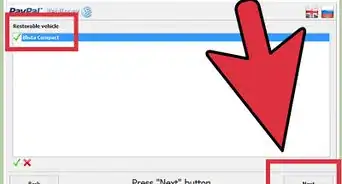
To install Grand Theft Auto: San Andreas on a desktop computer, start by clicking on the Steam app, which you can download if you don't already have it. Next, click the store tab in the top left-hand corner, open the search box, and search for Grand Theft Auto. Then, select Grand Theft Auto: San Andreas from the list. When you're prompted to do so, enter your date of birth and click "View page." You'll then need to enter your payment details to buy the game. Once it's downloaded, double click the app to start playing. For tips on how to install Grand Theft Auto on an X-Box or Playstation, read on!